
Adding a new patient
Open the patient creation panel
Click the button to add a new patient. A side panel opens where you enter general patient demographics information.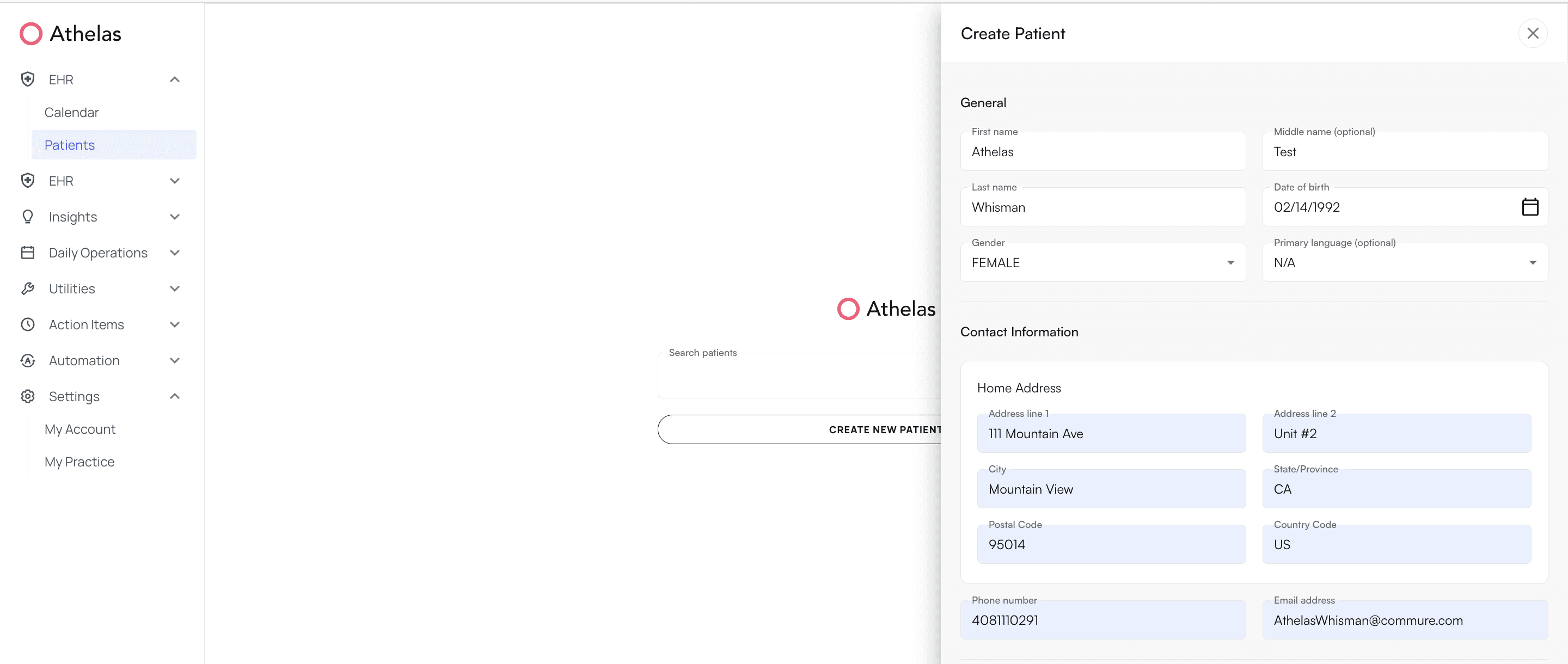
Enter required patient information
Fill in the following required fields:
- Full Patient Name
- First and Last Name
- Middle Name (if applicable)
- Gender
- Date of Birth
- Contact Information
- Home Address (Address Line(s), City, State, Post Code, and Country Code)
- Mailing Address (if different from Home Address)
- Phone Number
- Email Address
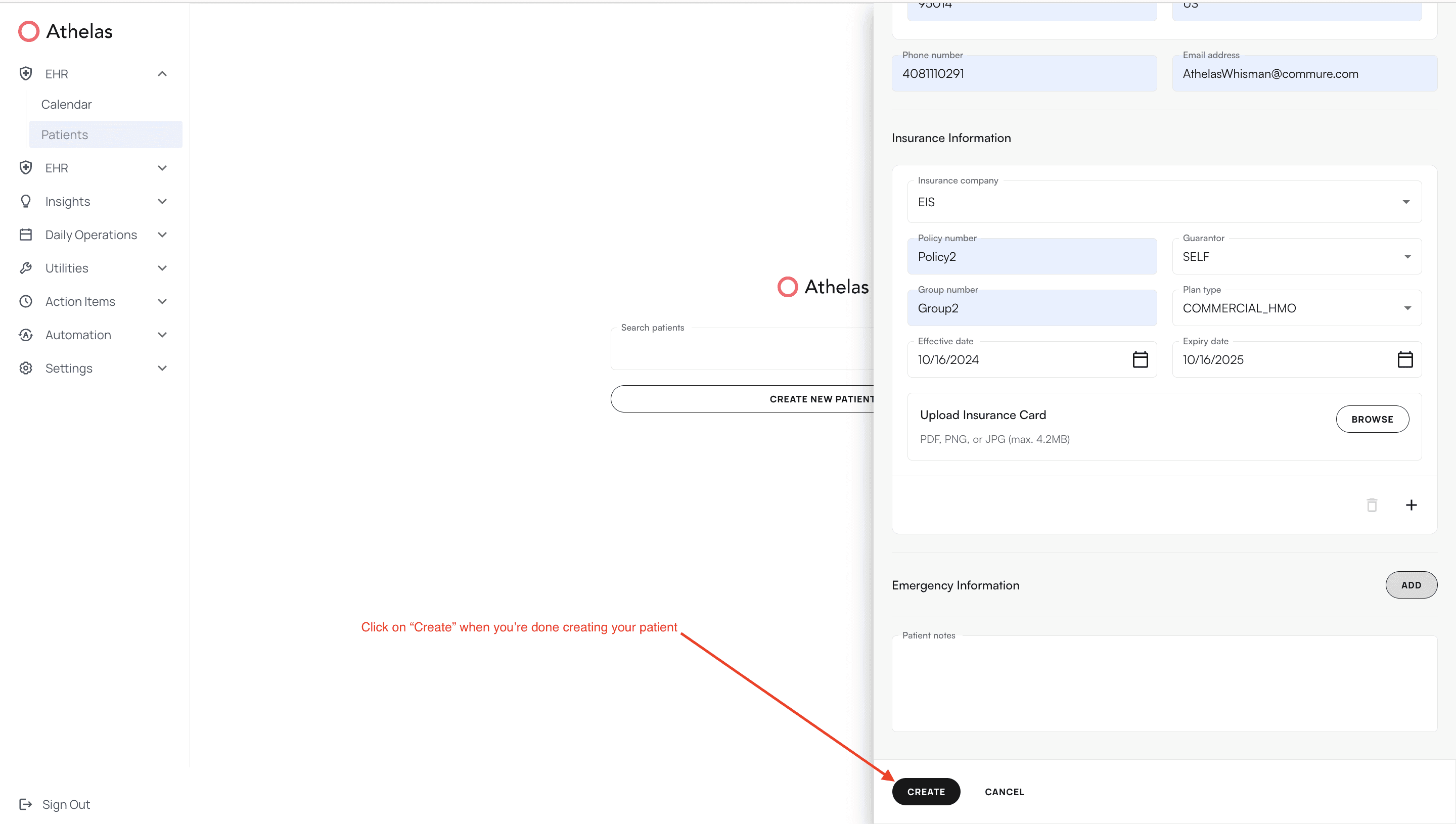
Add insurance information
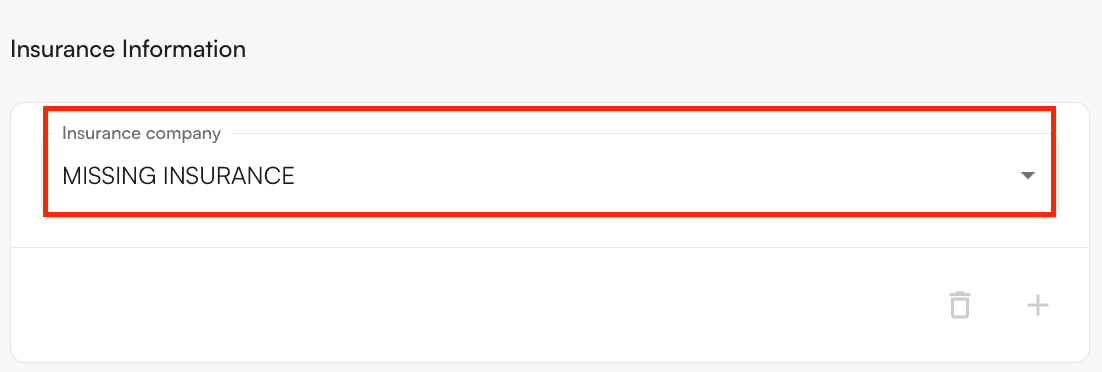
You can add insurance information, set up self-pay, or mark insurance as missing.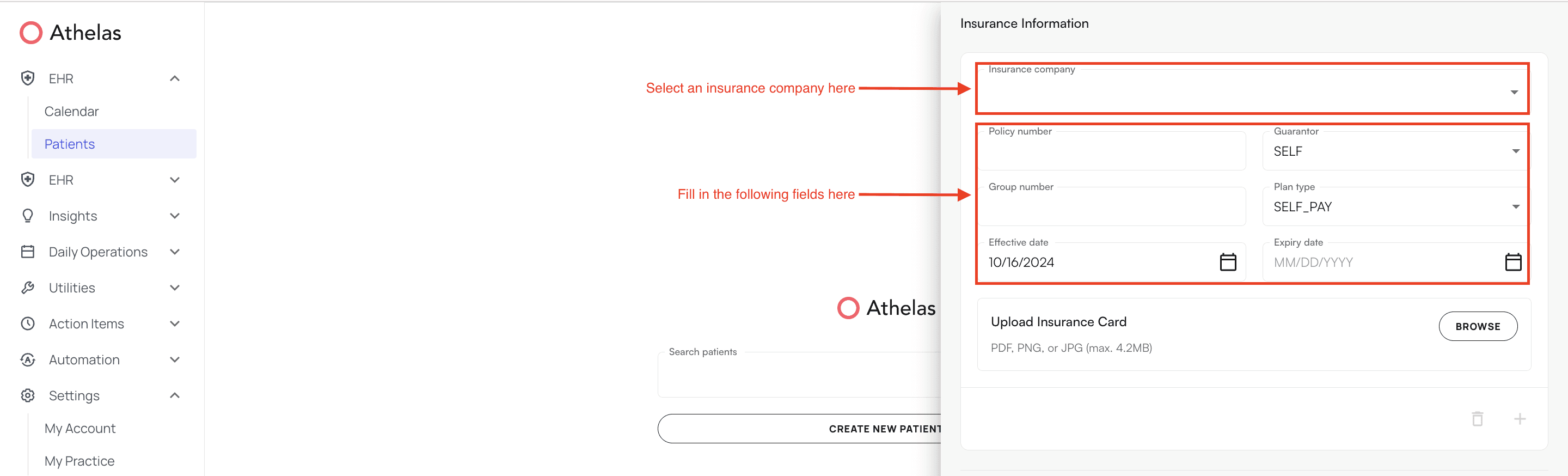

- Select an insurance company from the dropdown menu
- Enter the following information:
- Policy Number
- Group Number
- Effective and expiration dates
- Guarantor (relationship to policy holder)
- First Name
- Last Name
- Email Address
- Phone Number
- Date of Birth
- Gender
- Home Address (Address Line(s), City, State, Postal Code, and Country Code)
Add worker's compensation information (if applicable)
When you add a worker’s compensation insurance company, the payer type automatically changes to Worker’s Compensation. You can also manually override the payer type to Worker’s Compensation.The following additional fields populate when you select a worker’s compensation insurance company:
- Accident Date
- Claim Number
Add self-pay or missing insurance
To add Self-Pay: Type “Self Pay” in the Insurance Company field. Upon selection, the insurance details disappear and only “Self-Pay (No Insurance)” remains.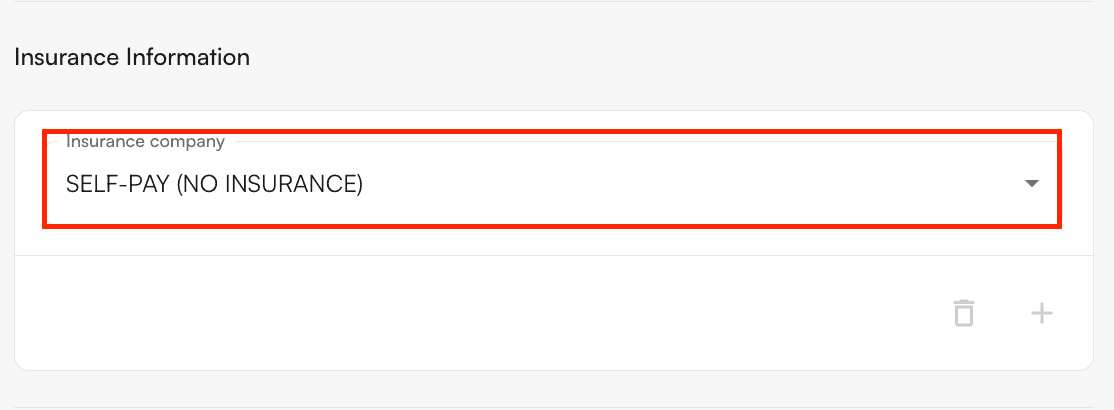
Adding cases, prior authorizations, and referring providers
After creating a patient, you can add prior authorizations, set insurance priority, create cases, and add referring providers.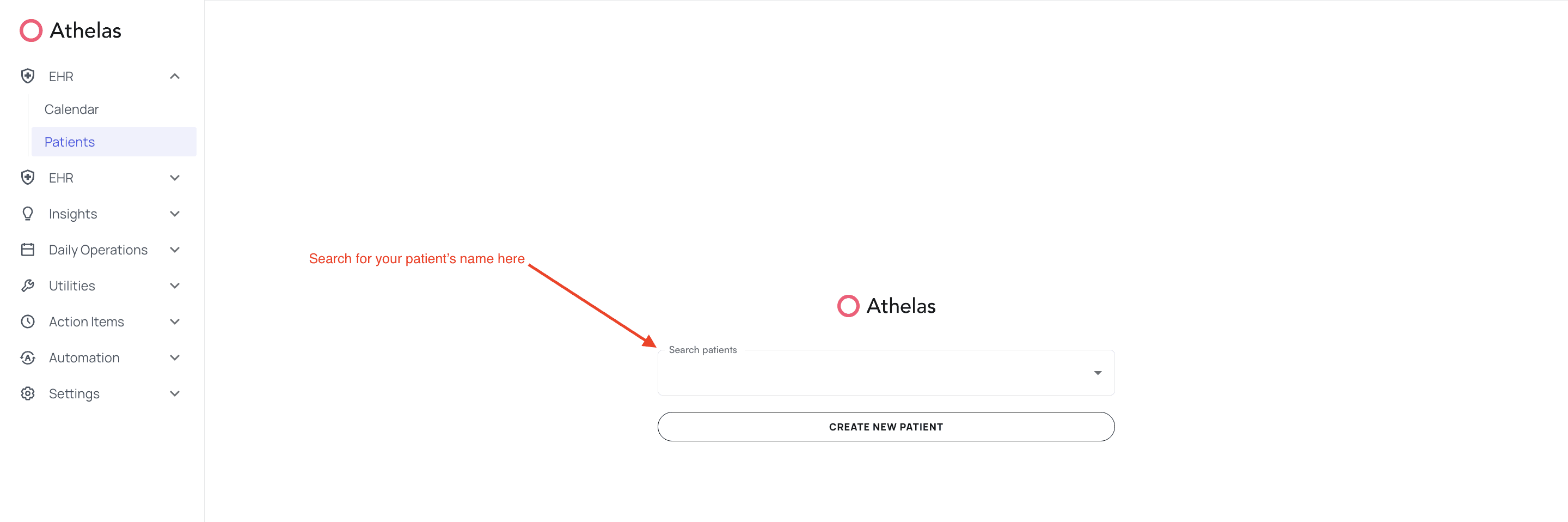
Create a case
Click “Create” under the Cases section. You can select insurance priority and enter the following fields: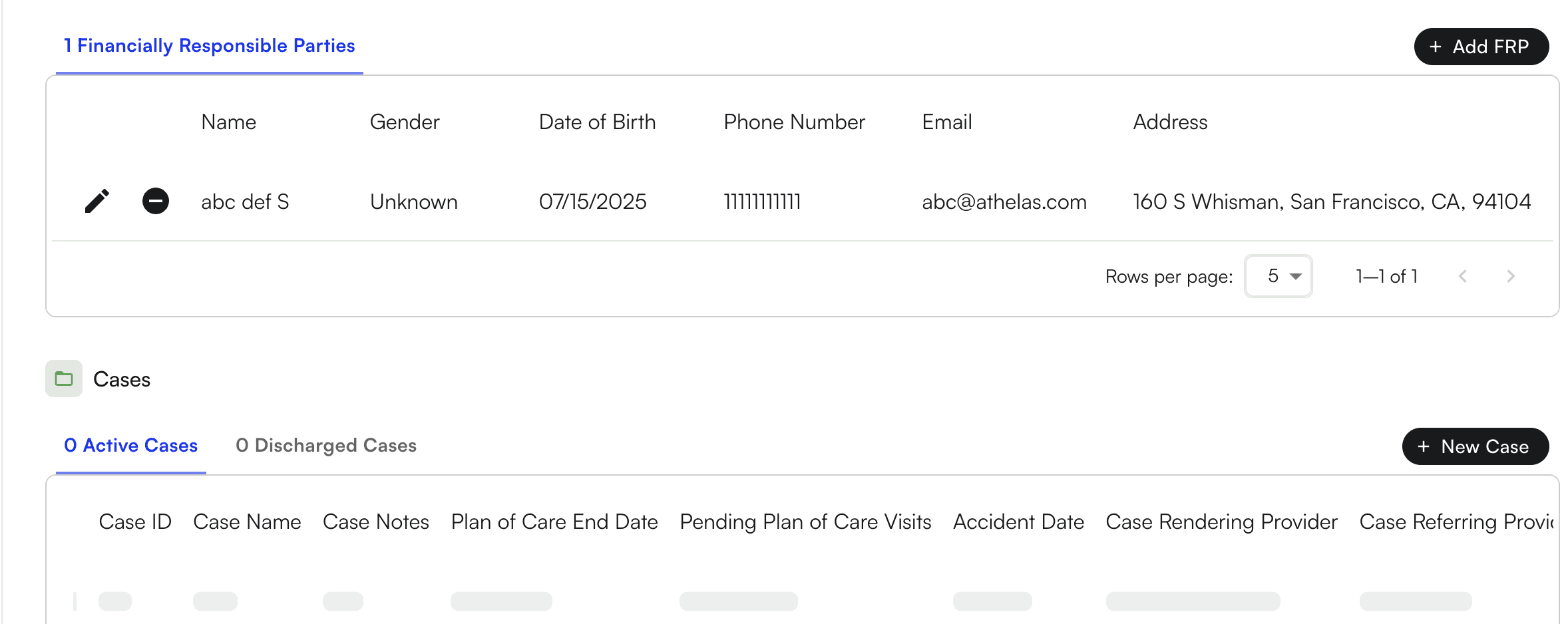
- Case Name
- Referring Provider
- Case Notes
Add prior authorization
Scroll down to the Prior Authorization section and click ”+ New Prior Auth”. A window opens in the middle of your screen where you can enter: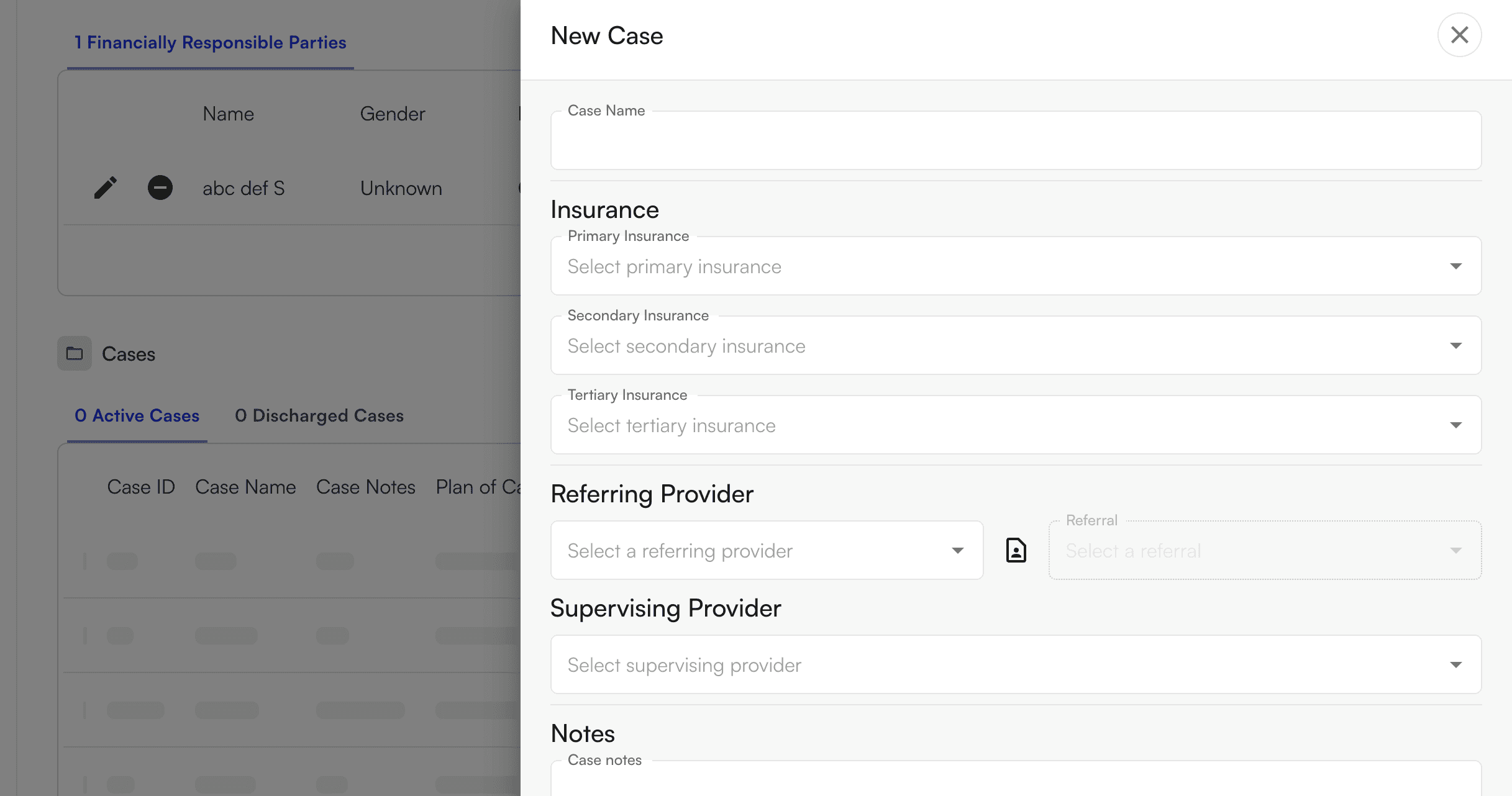
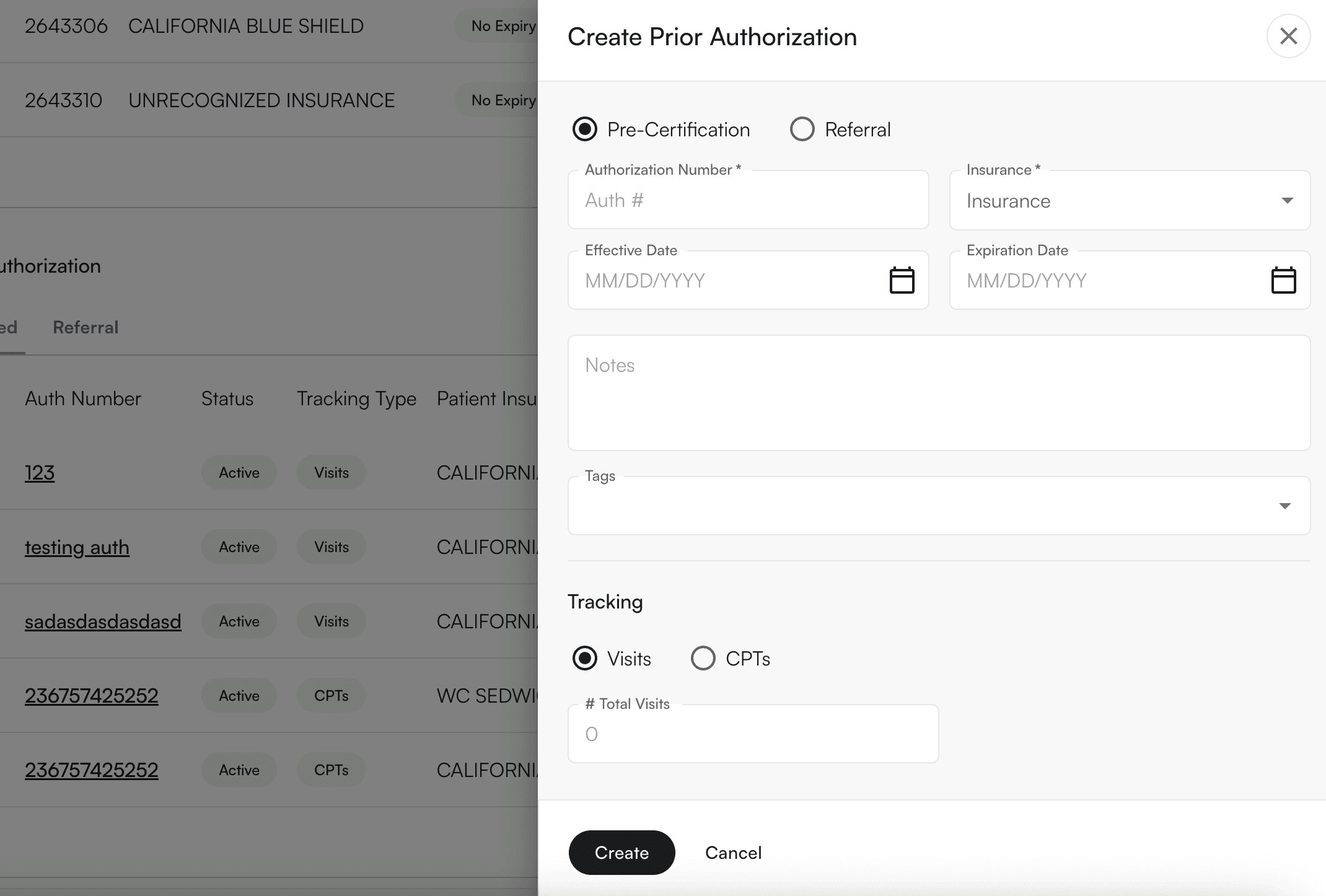
- Auth Number
- Total Number of Visits
- Effective Date
- Expiration Date
- Insurance this Prior Auth is tied to
Calendar walkthrough
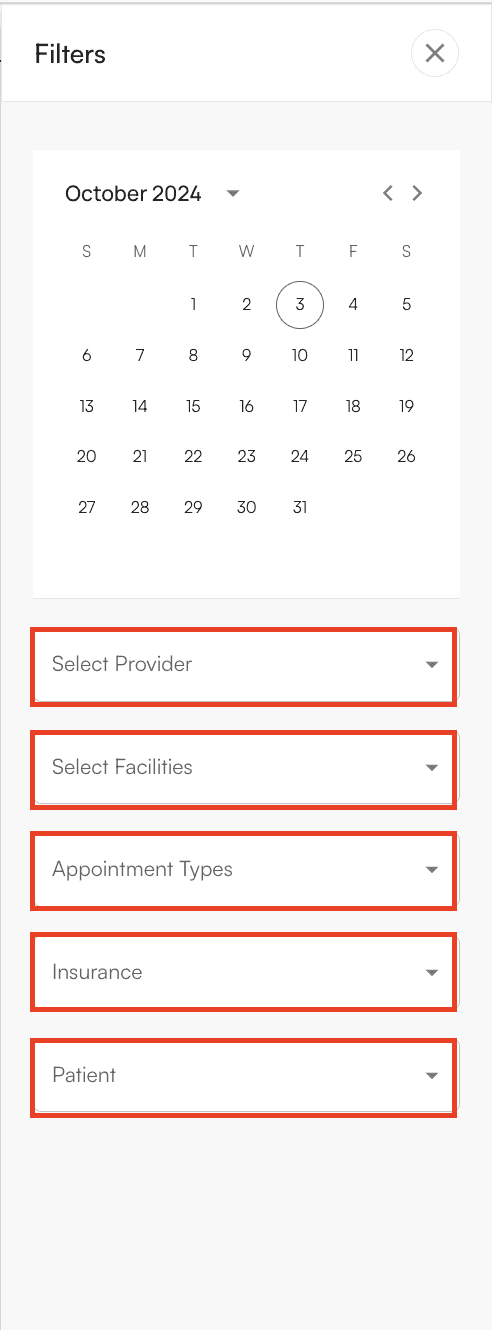
The calendar provides a quick overview of your day at a glance, helping you spend less time deciphering schedules and more time assisting patients.
Accessing and filtering the calendar
Open the calendar
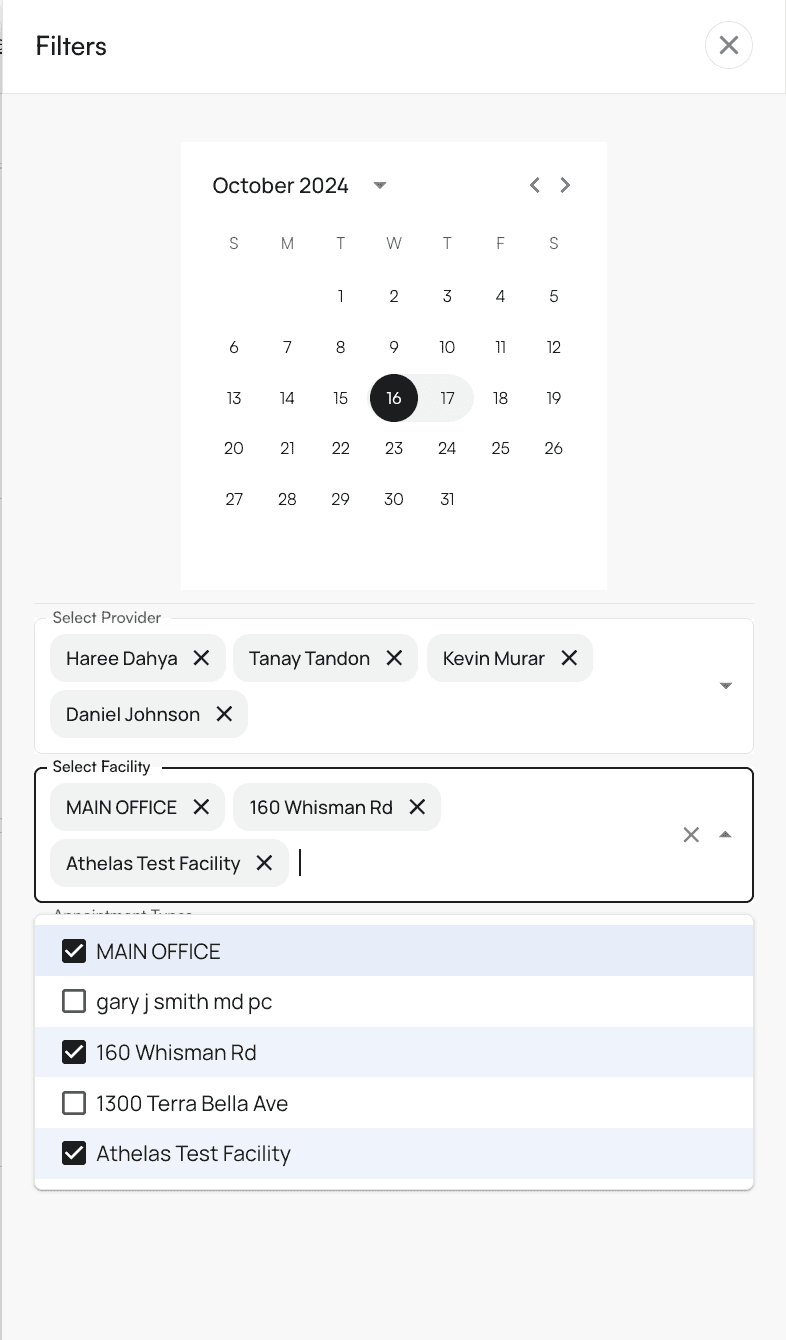
Click “Calendar” in the left-hand menu. To populate the calendar with information, click the filters icon in the top right corner.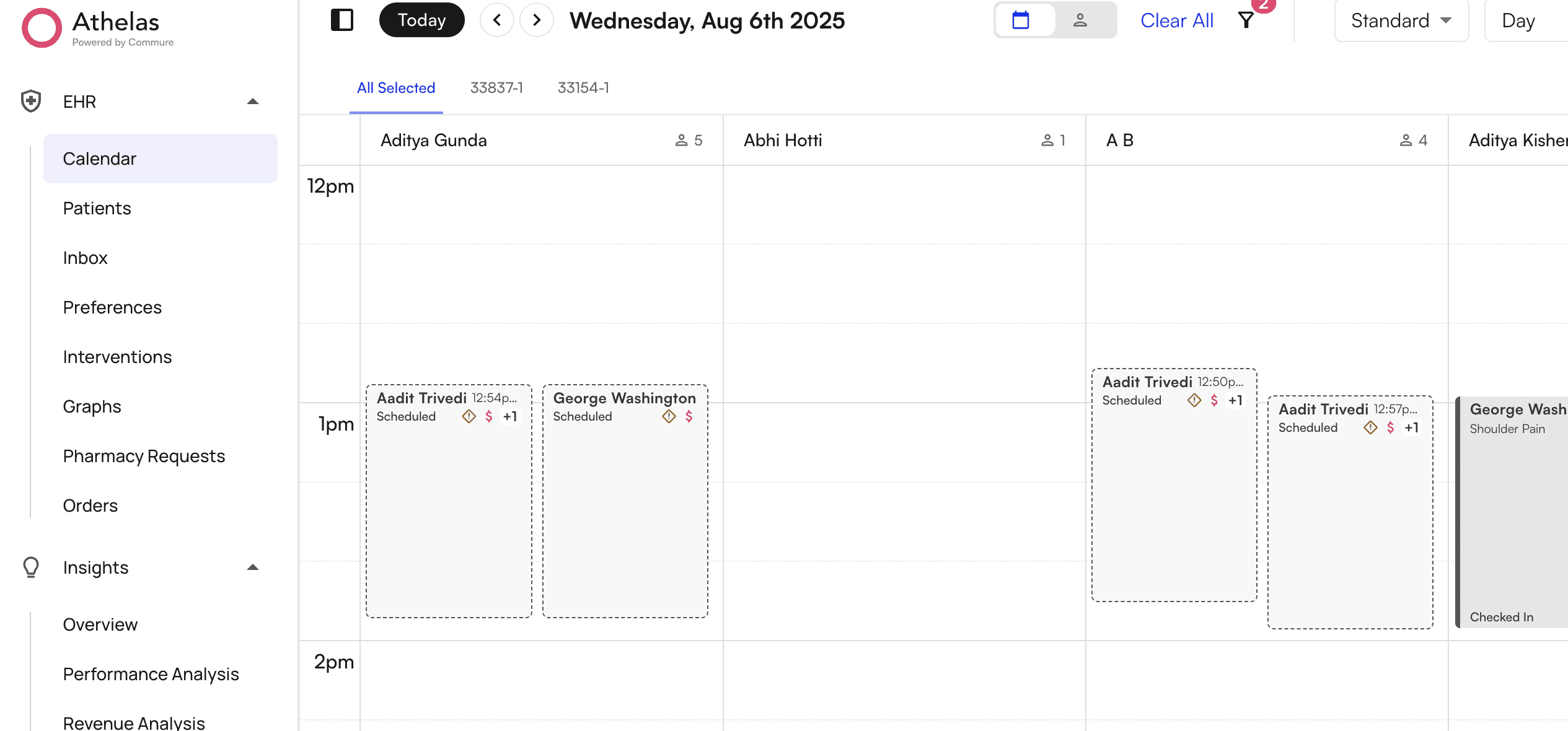
Understanding schedule blocks
Each schedule block displays the following information:- Case
- Eligibility status
- Payment Status
- Appointment status
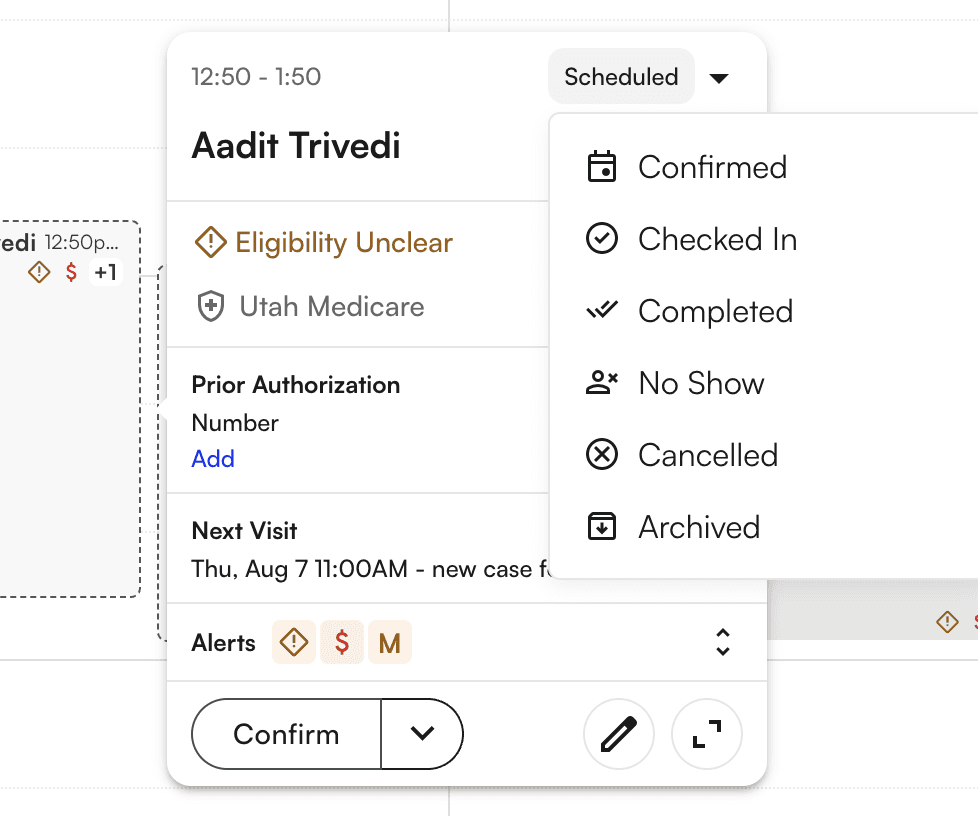
- Edit the appointment
- Re-run eligibility
- Update appointment status (if not checked in)
- Add Prior Auth information
- Schedule future appointments
- Open the chart note

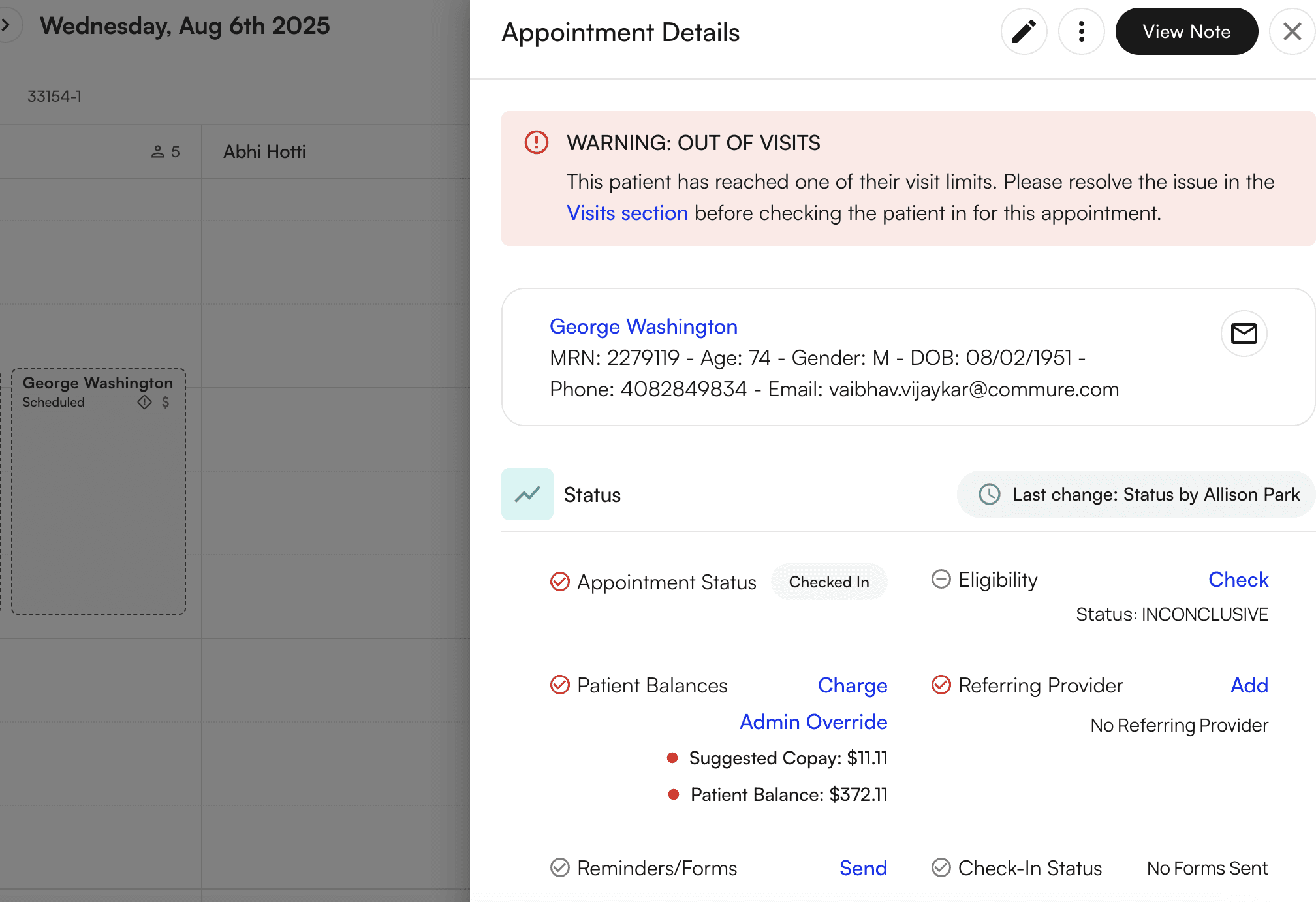
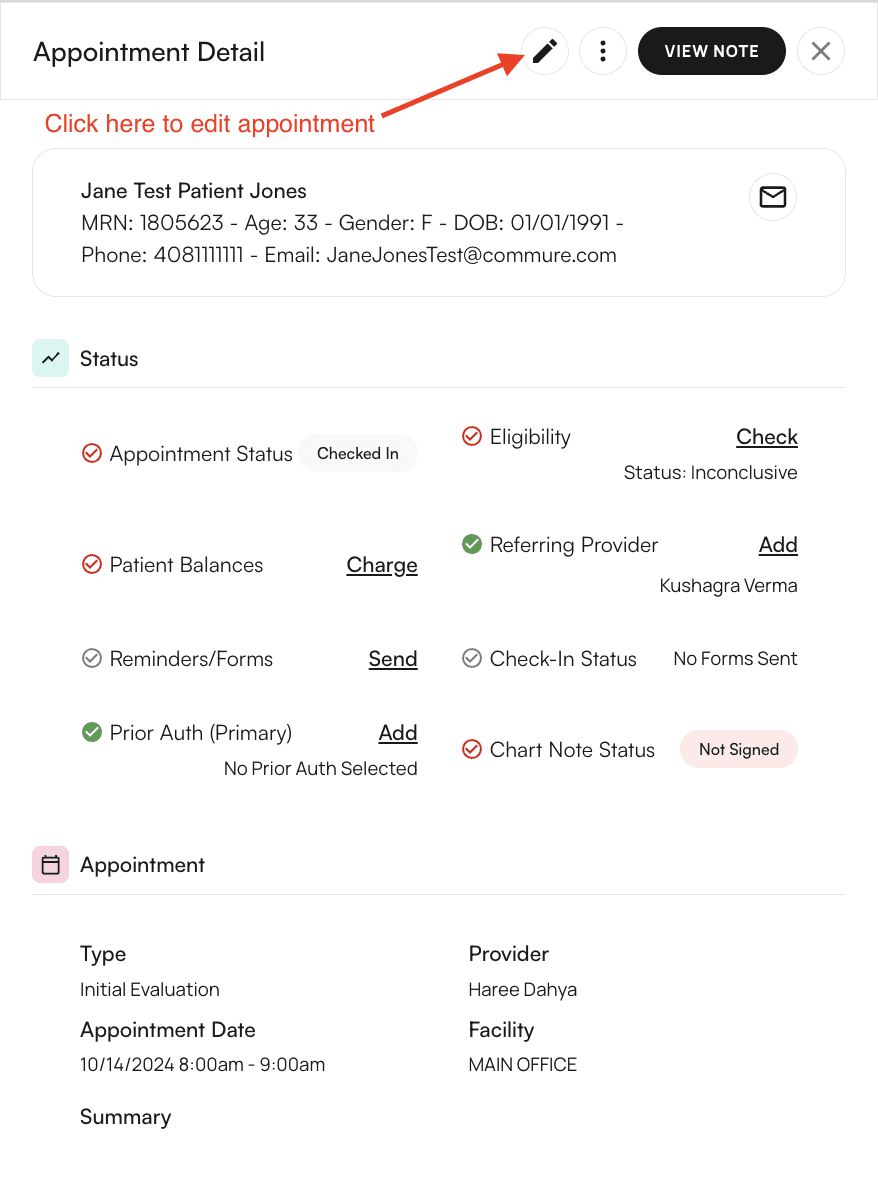
- General patient demographics
- Appointment Status
- Eligibility
- Patient Balances
- Referring Provider
- Reminders/Forms
- Check-In Status
- Prior Authorization for the patient’s Primary Insurance
- Chart Note Status
- Appointment Type
- Provider
- Appointment Date and Time
- Facility
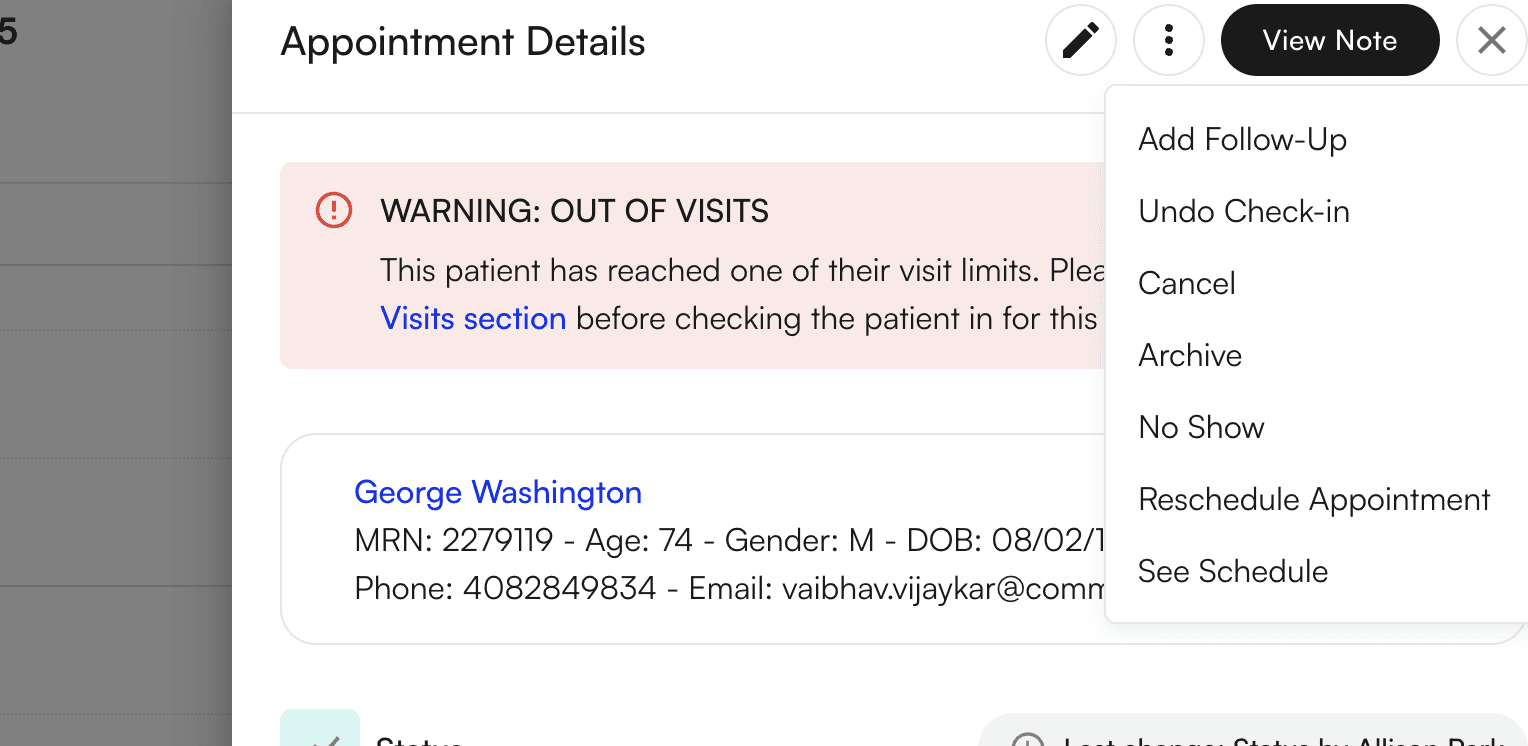
- Summary of the previous appointment
- Add a follow-up appointment
- Check-In and Undo Check-In
- Cancel the appointment (you’ll be prompted to enter a cancellation reason)
- Mark the appointment as No Show
- View the patient’s entire schedule
Creating appointments
You can create appointments using multiple methods. All methods open the same appointment creation side panel.Method 1: From the calendar header
Navigate to the calendar and click the ”+ Create New” button in the top right corner of the screen.
Method 2: From an empty calendar slot
Click any empty space in the calendar to create an appointment at that time.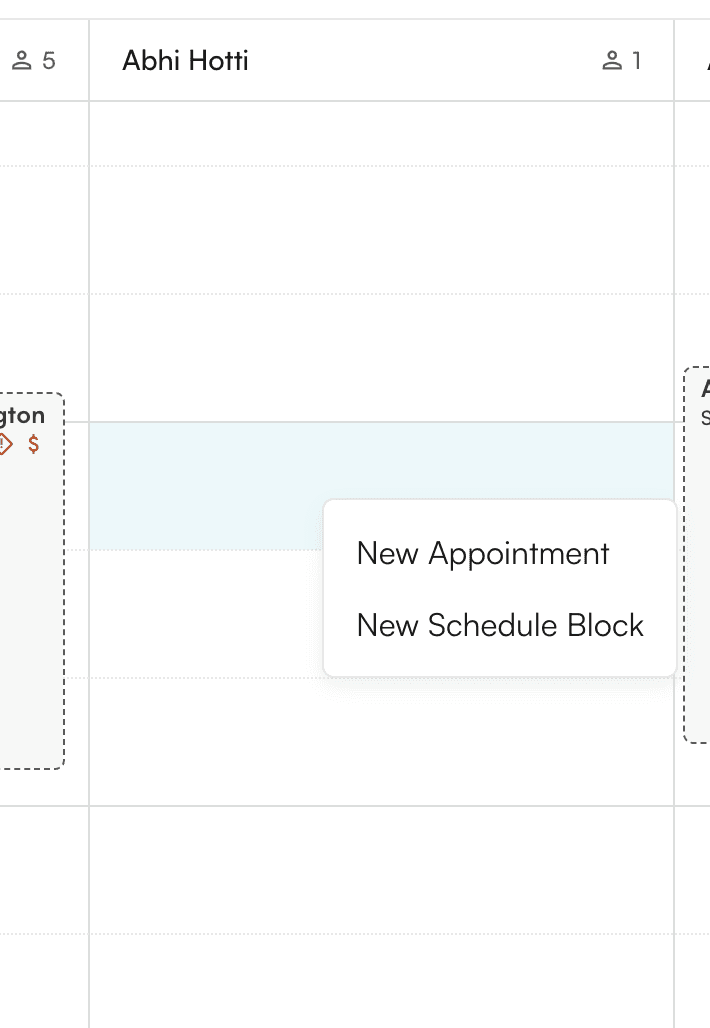
Method 3: From patient appointments
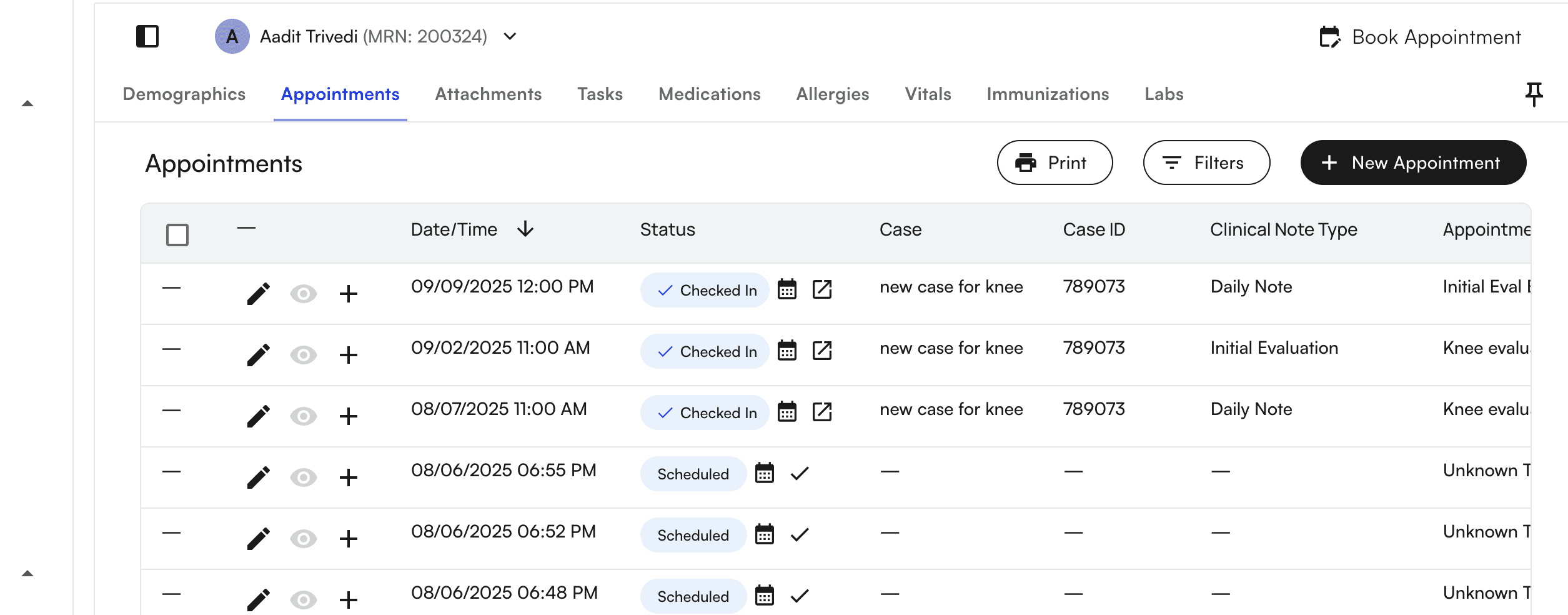
Navigate to Patients and search for your patient’s name. Click on “Appointments” after entering the patient’s demographics. Click ”+ New Appointment” or “Book Appointment” in the top right corner.
Filling out appointment details
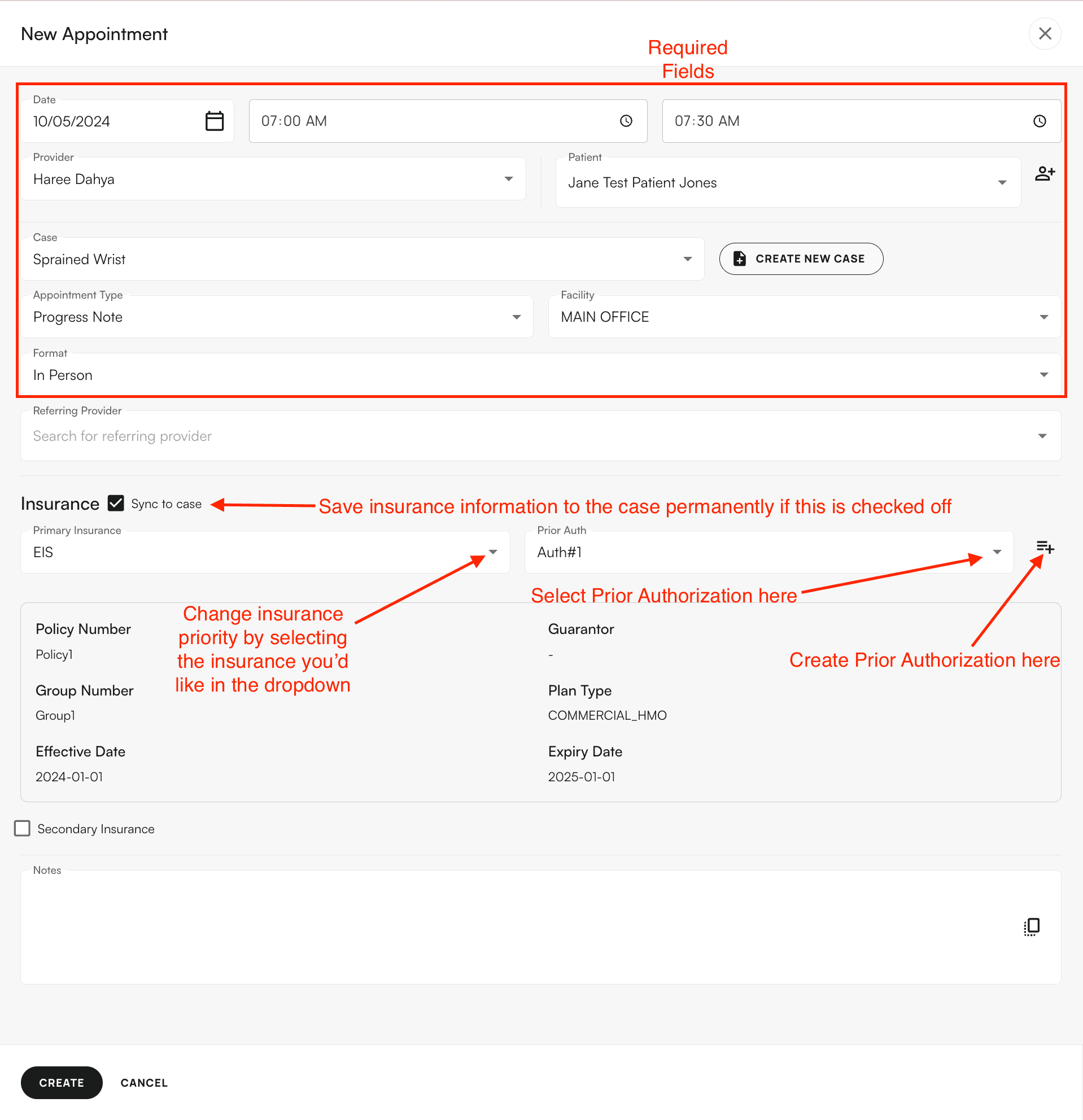
Regardless of which method you use, clicking ”+ New Appointment” opens a side panel where you enter appointment information.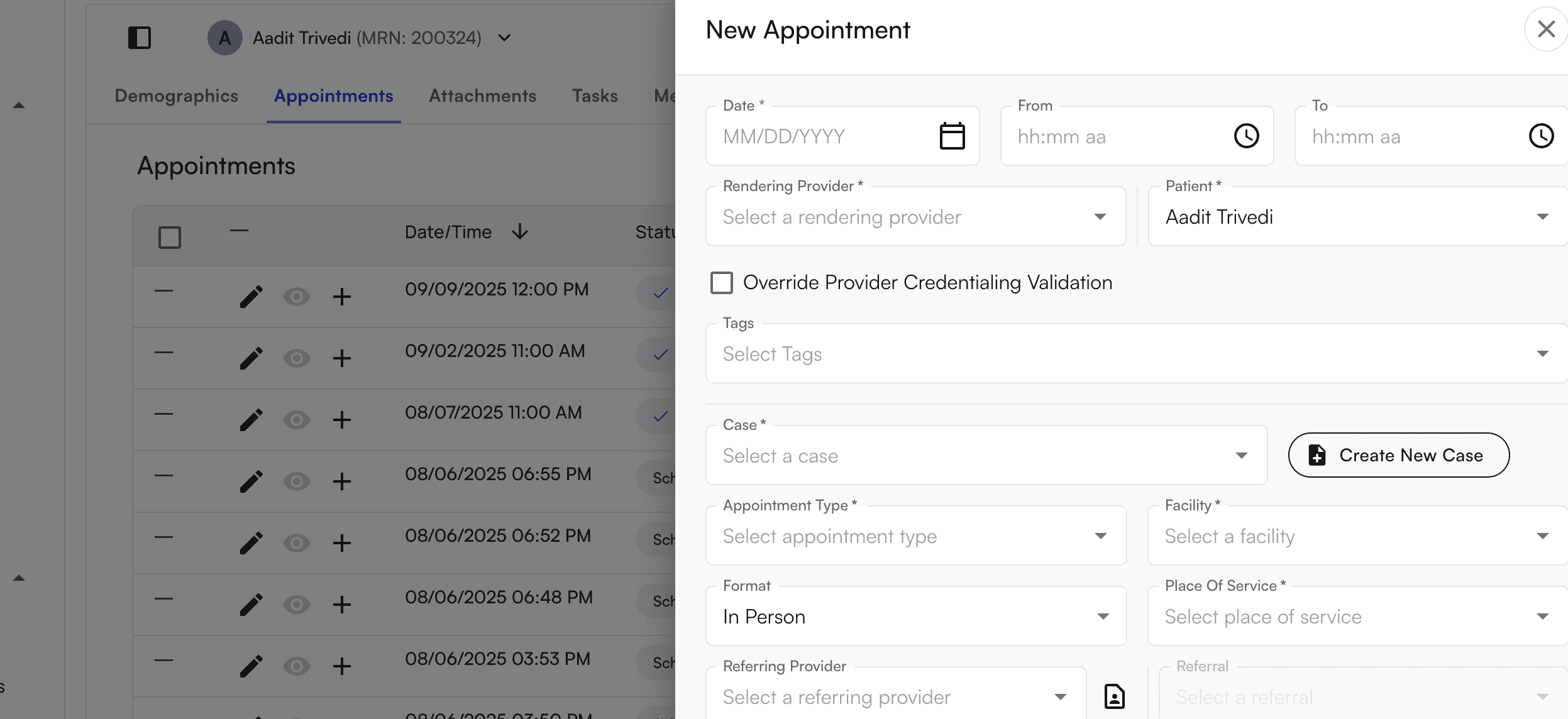
- Appointment Date
- Appointment Time
- Provider (Rendering)
- Patient
- Case
- Appointment Type
- Facility
- Format
- Referring Provider
- Insurance priority for the appointment (you can sync this permanently to the case)
- Prior authorizations per insurance

Faxing
You can bulk fax and download PDFs from the appointments table. All completed appointments have a checkbox next to them. You can:- Check the box at the top of the appointments table to select all
- Uncheck any appointments you don’t want to download or fax
- Check individual boxes next to specific appointments you want to download or fax


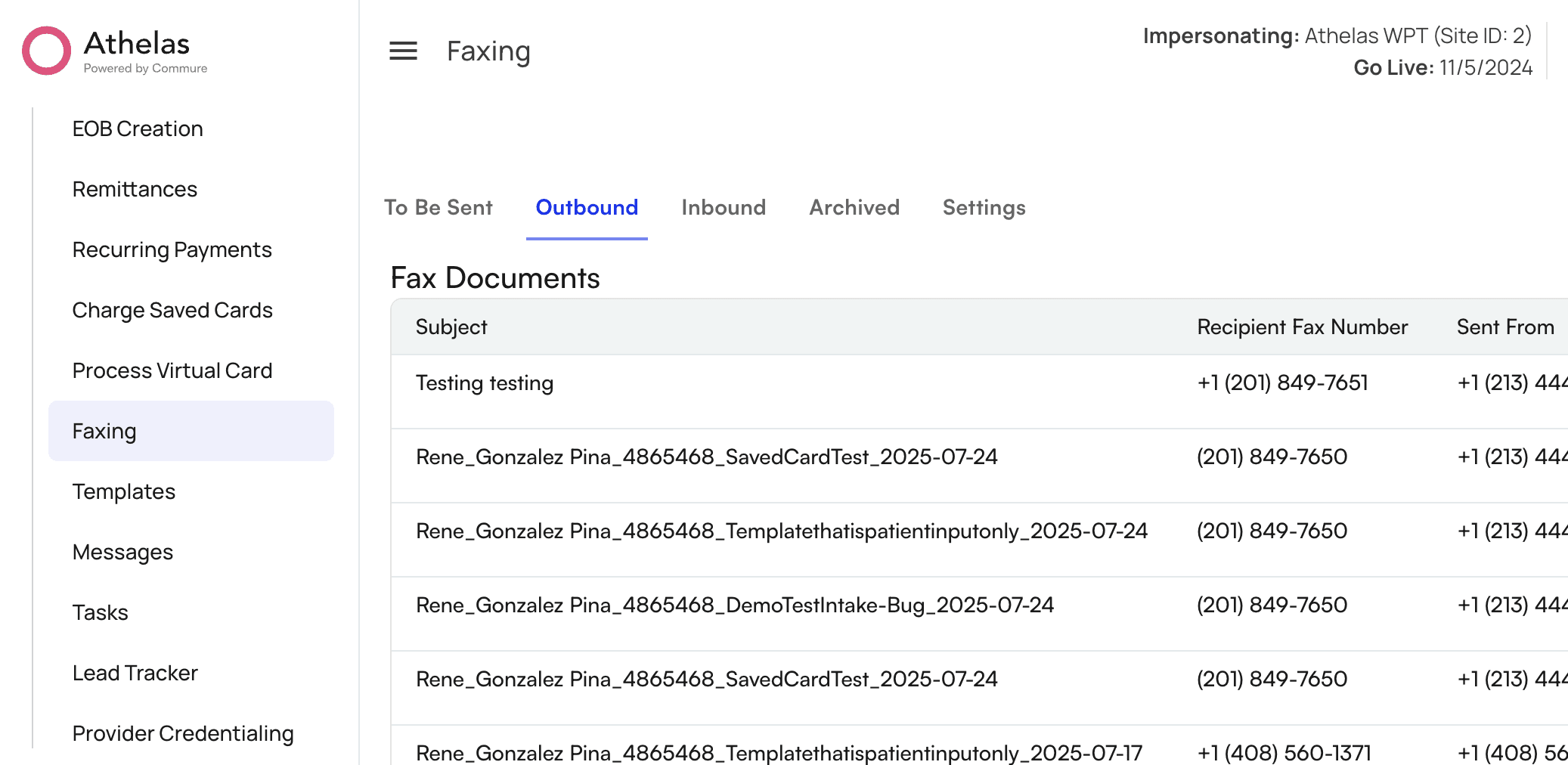
Using the dedicated faxing page
While you can fax through the patient profile, there’s also a dedicated faxing page for sending and receiving faxes. To access it:- Click Utilities in the left-hand menu
- Select the Faxing section
Q&A
What if I need to add multiple insurance policies for a patient?
What if I need to add multiple insurance policies for a patient?
Click the ”+” button next to the insurance section to add additional insurance policies. You can add as many as needed for each patient.
How do I find a referring provider if I don't know their NPI number?
How do I find a referring provider if I don't know their NPI number?
You need the NPI number to search for referring providers in the system. If you don’t have it, you can look it up on the NPI Registry website before adding the referring provider.
Can I edit an appointment after it's been created?
Can I edit an appointment after it's been created?
Yes. Click on the appointment in the calendar, then click the pencil icon in the Appointment Detail side menu to edit the appointment details.
What happens if I mark an appointment as No Show?
What happens if I mark an appointment as No Show?
When you mark an appointment as No Show, it updates the appointment status. You can still view the appointment details and take other actions like rescheduling or adding notes.
How do I filter the calendar to see only specific providers?
How do I filter the calendar to see only specific providers?
Click the filters icon in the top right corner of the calendar, then select the providers you want to view. You can select multiple providers and facilities at once.
Where do patient intake forms appear?
Where do patient intake forms appear?
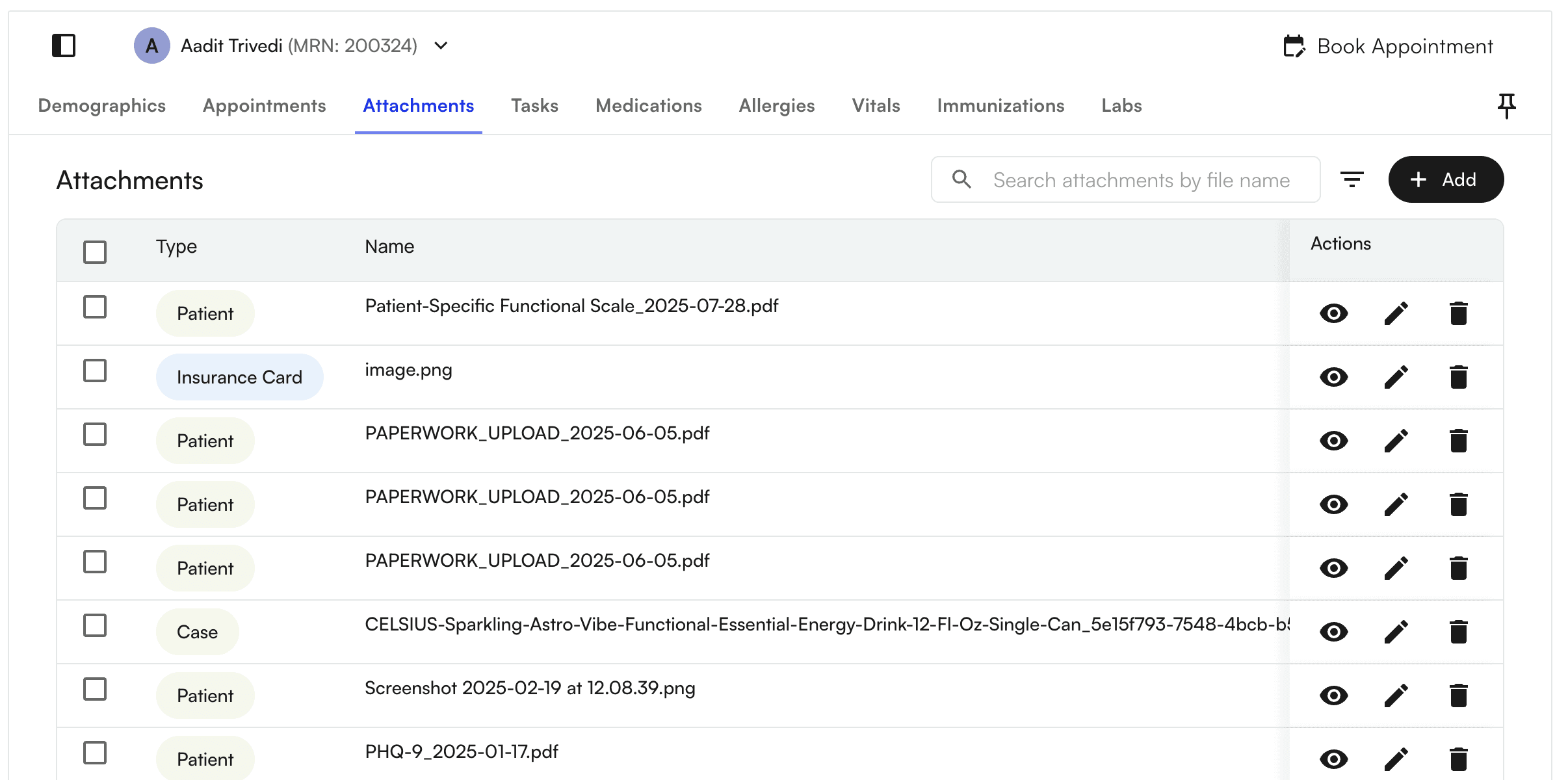
Intake forms automatically appear in the patient’s Attachments tab. You can access this tab from the patient demographics page.